8 min read
Automated workstation deployment starts with a standard image
Automated workstation deployment: build a standard image, separate drivers by model, and test one hundred PCs before handover.
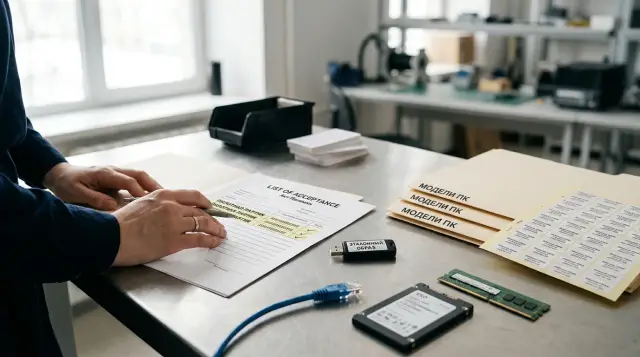
You do not get one hundred identically configured computers by copying a disk or writing a long script that imitates an administrator clicking through screens. A reliable process has three layers: a generalized Windows image, driver packs for each model, and automation that assigns each device its own name, account, policies, and applications after the first boot.
Do not mix these layers without a reason. If you put every driver, certificate, a management agent with an existing identity, and department-specific settings into the image, the first rollout may go quickly. The next update turns into dependency hunting, and two machines may fight over one record in the management console. I have seen deployments like that: every minute saved in preparation is later spent at individual users' desks.
This guide covers Windows 11 and conventional deployment from a WIM image. The same principle applies to Microsoft Configuration Manager and other management systems: the standard image contains only common elements, the deployment task selects what varies, and testing proves the result.
An identical workstation consists of three different things
A standard image should contain only what is genuinely identical across the whole batch. That normally means the Windows edition and build, language components, system updates, applications used on every computer, and baseline operating system settings. The computer name, domain membership, device certificate, asset number, and a particular user's profile come later.
It helps to separate the image, the deployment workflow, and configuration management. The image answers the question, "which files are already on the system partition?" The workflow defines disk partitioning, image selection, the driver pack, and the order of the first boot. A management tool maintains policies, updates, and application inventory after handover. When one WIM tries to do all three jobs, every change requires rebuilding and retesting a large binary file.
Do not aim for literally identical disks. Workstations should have the same managed state but different identifiers. Every machine needs its own SIDs, name, protection keys, directory record, and management-agent identity. Microsoft explicitly requires Sysprep with /generalize before a complete Windows image is moved to another computer, even when the hardware configuration is identical.
Before building, record the boundary of the standard image in a short inventory. For each component, list its version, noninteractive installation method, restart requirement, license type, and update owner. Mark everything that must never be baked into the WIM: passwords, private keys, enrollment tokens, VPN files containing personal data, and an agent that already has a registered ID. This inventory ends the "let us add one more small thing" argument before that small thing lands on one hundred disks.
Inventory before the build prevents a second rollout
First, divide the hundred computers into hardware families, even if the supplier calls them one series. The same label on the chassis does not guarantee the same storage controller, network adapter, or motherboard revision. Collect the exact model, BIOS or UEFI version, device hardware IDs, and disk controller mode from at least one unit in every delivered batch.
You can gather basic information from a working sample with built-in PowerShell commands:
Get-CimInstance Win32_ComputerSystem | Select-Object Manufacturer,Model
Get-CimInstance Win32_BIOS | Select-Object SMBIOSBIOSVersion,ReleaseDate
Get-PnpDevice -PresentOnly | Select-Object Class,FriendlyName,InstanceId,Status
Save the output beside the driver pack and its test date. A folder called Model-A says little six months later; a name such as L200_rev2_W11_24H2_2026-07 connects the model, revision, OS release, and test point. Replace the date in the example with the date on which you actually tested it.
At the same time, check the conditions an image cannot fix: processor compatibility with the chosen Windows release, UEFI, Secure Boot capability, TPM 2.0, memory, and disk capacity. Microsoft lists UEFI with Secure Boot capability and TPM 2.0 among the Windows 11 requirements. Bypassing these checks to get a quick start creates an unsupported fleet that later hits an update or security-policy barrier.
Build a role-by-model matrix. A standard office workstation, a designer's workstation, and an operator's computer may need different applications even though they share the same Windows base. One thin image plus three application sets is easier to maintain than three heavy images with almost the same content. A separate image makes sense when the OS edition, architecture, a critical low-level component, or isolated-environment requirements change.
Choose the delivery channel at this stage as well. PXE with a custom WinPE image and image repository suits a stable local network. A tested USB drive or a local distribution point makes more sense for a branch with a narrow link. The time needed to copy one WIM should not dictate the architecture, but it does determine the parallel batch size and the maintenance-window duration.
Build the standard image in a clean, reproducible environment
The best standard image normally starts in a virtual machine, not on one of the computers that will go to a user. A virtual machine does not bring in drivers for a random network card, manufacturer utilities, or traces of hardware diagnostics. Hypervisor snapshots are useful during development, but perform the final capture after a clean repeat of the procedure, not from a snapshot that has survived ten experiments.
Start with official installation media for the required Windows release and record its version. Install the OS without joining a domain, boot into audit mode, and install cumulative updates and common applications. Applications must install for the computer or for all users. An installation made "only for the current administrator" often works in the standard image and vanishes from a new user's profile.
Audit mode exists specifically for configuring Windows before the end user sees OOBE. You can enter it with Ctrl+Shift+F3 at the first OOBE screen or through an answer file. Do not create a normal working user merely to decorate a profile. To transfer profile settings, Microsoft supports the Microsoft-Windows-Shell-Setup\CopyProfile setting in the Unattend.xml file passed to Sysprep; manually copying the profile directory also transfers unwanted references, cache data, and permissions.
I do not recommend baking an antivirus or management agent into the image after it has registered with its server. Many agents have their own GUID, certificate, or token. A cloned identity makes the console show one machine that keeps changing instead of one hundred separate machines. If the agent vendor documents a clone-preparation procedure, follow it exactly. If there is no such procedure, install or register the agent after specialize, once the computer has its unique name.
Before generalizing, remove only reproducible debris: temporary installer files, local logs created by your build, and a package cache that you know is not needed for repair. Do not run a random "optimizer" or remove Windows components to save a few hundred megabytes. Aggressive cleanup often surfaces later, when a language pack, feature on demand, or cumulative update refuses to install.
Finally, repeat the build from scratch using the recorded workflow. If the second standard image differs from the first and you cannot explain why, it is too early to automate the rollout. Store application installation scripts and checksums for the original packages beside the image version description. You can recapture a WIM; reconstructing the reasoning behind it is much harder.
Unattend.xml replaces manual answers, not architecture
An answer file automates Windows Setup decisions: disk partitioning, edition selection, language, the OOBE flow, and commands at defined stages. Microsoft documents seven configuration passes, including windowsPE, offlineServicing, generalize, specialize, and oobeSystem. A setting with the right value in the wrong pass will either be ignored or run at a different point than you expected.
Create Unattend.xml in Windows System Image Manager for the image version you are deploying, and validate it there. Manual editing is acceptable during review, but the validator catches a missing component or unsuitable pass before the hundredth computer stops at OOBE. Do not store a domain administrator password in the XML. Join the directory with a narrowly privileged account, a one-time mechanism, or the management system after installation.
A minimal fragment for Russian locale settings and Kazakhstan's time zone can look like this; verify the component architecture and locale values against your release:
<settings pass="specialize">
  <component name="Microsoft-Windows-Shell-Setup"
             processorArchitecture="amd64"
             publicKeyToken="31bf3856ad364e35"
             language="neutral" versionScope="nonSxS">
    <TimeZone>Central Asia Standard Time</TimeZone>
  </component>
</settings>
<settings pass="oobeSystem">
  <component name="Microsoft-Windows-International-Core"
             processorArchitecture="amd64"
             publicKeyToken="31bf3856ad364e35"
             language="neutral" versionScope="nonSxS">
    <InputLocale>ru-RU</InputLocale>
    <SystemLocale>ru-RU</SystemLocale>
    <UILanguage>ru-RU</UILanguage>
    <UserLocale>ru-RU</UserLocale>
  </component>
</settings>
This fragment deliberately does not hide every OOBE page or create a local administrator with a known password. A fully unattended installation does not have to contain a permanent secret. If the process needs a temporary local account, generate a random password for each device, send it through a protected channel, and change or remove the account after device enrollment.
Separate first-boot commands by execution context. Tasks that change the computer should run as the system account and write their own log. Apply user settings through policy when the user signs in. A long chain of FirstLogonCommands is unreliable because interactive sign-in, network availability, and restarts begin to depend on one another. Give every step a return code, an allowed retry policy, and an unambiguous completion marker.
Sysprep and DISM produce a portable WIM
Generalize the final copy of the standard image that you intend to shut down. Check for updates, confirm that no installer is waiting for a restart, stop your build script, and run:
%WINDIR%\System32\Sysprep\Sysprep.exe /generalize /oobe /shutdown /unattend:C:\Windows\Panther\Unattend.xml
The /generalize option removes installation-specific information and prepares the next boot for the specialize pass. /oobe sets the state for the next startup, and /shutdown prevents the standard image from booting again accidentally before capture. If Sysprep fails, do not clone the machine "as is." Read %WINDIR%\System32\Sysprep\Panther\setupact.log and setuperr.log, correct the package or pending servicing operation, and repeat the work from a clean state.
After shutdown, boot the standard image into WinPE. Do not start the installed Windows instance again: its next boot consumes the prepared state and changes the system. Drive letters can differ in WinPE, so first locate the Windows volume with diskpart, dir, or a script that checks for the Windows\System32 directory.
One reproducible capture and apply cycle looks like this:
- Connect a network share or external disk with enough space for the WIM and its log.
- Capture the system partition with
dism /Capture-Image /ImageFile:D:\Images\Office-2026-07.wim /CaptureDir:C:\ /Name:"Office base" /Compress:Max /CheckIntegrity /Verify. - On a test machine, clear the disk, create GPT partitions for EFI, MSR, and Windows, and format them with a version-controlled DiskPart script.
- Apply the image:
dism /Apply-Image /ImageFile:D:\Images\Office-2026-07.wim /Index:1 /ApplyDir:W:\ /CheckIntegrity /Verify. - Create boot files:
W:\Windows\System32\bcdboot W:\Windows /s S: /f UEFI, disconnect the media, and restart the computer.
Microsoft's DISM documentation defines /Capture-Image as capturing a directory and all its subdirectories into a WIM, and /Apply-Image as applying a selected index. /CheckIntegrity and /Verify take time, but that is a sensible cost for a standard image: find a damaged file before the batch begins. After capture, calculate the WIM's SHA-256 with Get-FileHash, save the hash in the release record, and verify it after copying the image to distribution points.
Do not call the file simply gold.wim. Put the Windows release, purpose, revision, and approval date in the name and release record. Treat the file as an immutable artifact: a correction produces a new version instead of silently replacing the contents under the old name. You can then finish an existing batch with the old image and test the new one separately.
Select drivers by model instead of pooling them
You do not need to add every available driver to the base image. Windows already contains a large set of built-in packages, and extra OEM packages increase WIM size, maintenance time, and the number of Plug and Play selection candidates. Multiple versions of storage, network-filter, and graphics drivers are particularly risky when nobody can explain why they are present.
Create a separate signed package for each hardware family. WinPE needs only the drivers without which it cannot see storage or the network. Add the remaining packages to the applied offline image before its first boot:
dism /Image:W:\ /Add-Driver /Driver:D:\Drivers\L200_rev2 /Recurse
dism /Image:W:\ /Get-Drivers /Format:Table
Microsoft warns that /Recurse can easily bloat an image: every INF expands as a separate package, sometimes with duplicate files. Recursion is acceptable inside a tested folder for one model, but not at the root of a general driver archive. /ForceUnsigned should not become a standard workaround. An unsigned driver needs separate justification and compatibility testing against Secure Boot policies.
If a reference computer already has a verified manufacturer package, export third-party drivers with pnputil /export-driver * D:\DriverExport, then sort the result by INF and hardware ID. Do not treat the export as a ready-to-use pack automatically: it can include old versions and drivers for peripherals that were once connected. Record the vendor, version, date, supported IDs, and installer source for each pack.
You can identify the model in full Windows with Get-CimInstance Win32_ComputerSystem. In the deployment system, map the normalized model string to one folder. Do not use a condition such as "name contains 200" when L200 and M200 devices have different hardware. An unknown model must stop automation with a clear error instead of receiving the nearest-looking pack.
Test drivers after the first boot by checking which package each device actually uses. An empty list of Device Manager errors matters, but it is not enough: a network adapter may run on a generic driver without required functions, and graphics may come up on the basic display adapter. Compare the active driver version for storage, network, graphics, chipset, and special devices with the matrix approved during the pilot.
The delivery channel must not bring manual work back
The process is automated when an operator selects a batch or scans an asset number and later receives a verifiable result. If every computer still requires someone to choose a WIM index, find a driver folder, type a name, and confirm five dialogs, you have moved manual setup from Windows Setup into your own menu.
For network deployment, use a custom WinPE image that boots through PXE, obtains the workflow, detects the model, wipes only the selected system disk, applies the WIM and driver pack, and then writes status to a server. Do not confuse PXE with the old end-to-end WDS workflow. Microsoft documentation states that Windows 11 deployment through WDS using installation-media boot.wim and Windows Setup in WDS mode is unsupported. WDS PXE itself remains suitable for booting a custom boot image, including one used by Configuration Manager or another deployment system.
Use the same workflow and checksums on standalone media. Only the file source and log destination should differ. Once a network appears, the local log can upload centrally. Two separate procedures, "network" and "USB for the branch," inevitably drift when maintained as different command sets.
Measure concurrency during the pilot. One hundred machines reading a multi-gigabyte WIM from one network share at the same time can turn a ten-minute apply phase into a long queue. Limit simultaneous sessions, distribute content to local points, or use multicast if the selected system supports it. Do not promise a rollout time based on one machine running on an empty network.
Make the workflow idempotent where possible. After a power failure, a rerun should recognize the disk state and either restart application safely or stop. It must not join one computer to the directory twice or create a second inventory record. Tie every dangerous operation to a testable condition, and return final success only after Windows finishes its first boot.
A pilot tests the model, while a batch tests the process
One machine that boots successfully proves only that the WIM applied to one unit. First deploy one computer from each hardware revision, then a small concurrent batch, and only then start the main rollout. This separates a compatibility defect from a network or server limit.
Acceptance must be machine-testable. The following PowerShell fragment produces JSON fields that are easy to collect in a shared folder or inventory system:
$result = [ordered]@{
  ComputerName  = $env:COMPUTERNAME
  Model         = (Get-CimInstance Win32_ComputerSystem).Model
  WindowsBuild  = [Environment]::OSVersion.Version.Build
  PendingReboot = Test-Path 'HKLM:\SOFTWARE\Microsoft\Windows\CurrentVersion\Component Based Servicing\RebootPending'
  ProblemDevices = @(
    Get-PnpDevice -PresentOnly |
      Where-Object Status -ne 'OK' |
      Select-Object Class,FriendlyName,InstanceId,Status
  )
}
$result | ConvertTo-Json -Depth 4
On a healthy computer, ProblemDevices normally returns an empty array, and PendingReboot should be false before handover. Compare the build number and model with allowed values in the release record instead of merely recording them. Add the tests that matter for the role: a management agent with a unique ID, encryption state, policy receipt, launch of a business application, access to the required network, and printing to a test device.
Five manual checks can still make sense when they cannot be automated reliably, but they must be consistent and documented. I usually leave image quality at the native resolution, audio, sleep and wake, external ports, and physical labeling to a person. The reviewer records serial and asset numbers, the image version, driver pack, result time, and their name.
When a failure occurs, collect evidence before reinstalling. For Windows Setup, primary activity is in %WINDIR%\Panther\setupact.log, errors are in setuperr.log, Plug and Play installation is in %WINDIR%\INF\setupapi.dev.log, and Sysprep logs are in %WINDIR%\System32\Sysprep\Panther. If you erase the disk and try again immediately, you may get a working machine but will not know whether the failure will recur on the next twenty.
Set the pilot exit criterion in advance. For example, each supported model can pass automated tests twice after a clean deployment, while a concurrent batch completes within the agreed window without manual correction. This is not a statistical guarantee. It is a practical barrier against the conclusion, "it worked on my computer."
Handover ends deployment, but not the image lifecycle
Before handover, the device needs a unique name, an inventory record, correct activation, applied policies, role-specific applications, and confirmed encryption. Do not treat a sign-in screen as proof of readiness. For every serial number, create a record of the WIM version, driver pack, test result, and employee who accepted the computer.
After the rollout, the image becomes a maintained release. Assign an owner, a rebuild cadence, a retention period for the previous version, and triggers for an out-of-cycle update, such as a vulnerable driver fix or a change of the base Windows release. Do not make an old WIM catch up through endless updates during the first boot: handover time and failure points both grow. When post-apply servicing consumes a noticeable share of the window, rebuild the standard image from the source workflow.
Design rollback before the mass rollout too. Keep the previous approved WIM, its Unattend.xml, driver packs, and release record. The ability to return to an old version does not mean you can mix it with new drivers without testing. The release unit is the complete approved set, not only the image file.
If the fleet is purchased and introduced as one project, agree on hardware revisions and the deployment method in the specification. GSE manufactures L200 desktop PCs, M200 all-in-one systems, and S200 servers in Kazakhstan and also provides system integration and support, so model-specific driver packs and acceptance criteria can be connected to the delivery instead of reconstructed after unloading the equipment.
The hundredth machine should follow the same path as the first pilot, using the same hashes and the same validation record. If the administrator has a notebook full of exceptions halfway through the batch, stop the rollout and put those exceptions into the workflow. Otherwise you will deliver one hundred similar computers, not one managed fleet.
Frequently asked questions
Can I clone Windows without Sysprep if the computers are completely identical?
No. Microsoft requires `Sysprep /generalize` before moving a complete image to another computer, even with identical hardware. Otherwise, installation-specific data remains in the copy, and the deployment method is unsupported.
Is one thick image with every application better than a thin image?
For several roles, a thin common image and separate application sets are easier to maintain. A thick image makes sense for a stable, genuinely common set that takes a long time to install and passes one shared test cycle.
Do I need to add every driver to the standard WIM?
No. Keep the base WIM clean and apply signed drivers by exact model. Add only the drivers WinPE needs to see the network or storage to the boot environment.
How can I deploy one image to different computer models?
Detect the exact model, map it to a tested driver pack, and stop the task for an unknown value. Windows and applications remain common, while the hardware layer is selected separately.
Can I use WDS to install Windows 11?
WDS can still provide PXE boot for a custom boot image. The end-to-end workflow with installation-media `boot.wim` and Windows Setup in WDS mode is unsupported for Windows 11, so use a custom WinPE image or another deployment tool.
Where should I store the password for automatic domain join?
Do not put a permanent domain administrator password in Unattend.xml or the WIM. Use a minimally privileged account, a one-time join mechanism, or enrollment through the management system after installation.
Why does Sysprep fail on a finished standard image?
Common causes include pending servicing, a required restart, or an application package that cannot be generalized in its current state. Read `setupact.log` and `setuperr.log` in the Sysprep Panther directory first, then reproduce the correction on a clean build.
How do I know a workstation is really ready for handover?
Check the Windows build, model, problem devices, management-agent identity, policies, encryption, and role applications. Tie the result to the serial number, WIM version, and driver pack.
How many computers should be in the pilot batch?
Start with at least one unit from every hardware revision, then run a small concurrent batch to test the delivery channel. The second batch size depends on the network and maintenance window, so measure it instead of using a universal number.
When should I rebuild the Windows standard image?
Rebuild it when the base release changes, critical updates arrive, a common application changes, or post-install servicing becomes too slow. Create a new version from the source workflow and keep the previous approved set for rollback.