7 min read
Downtime should decide between an all-in-one and mini PC
We compare an all-in-one or mini PC for a cramped office: display replacement, RAM and SSD access, cables, repair time, and upgrades.
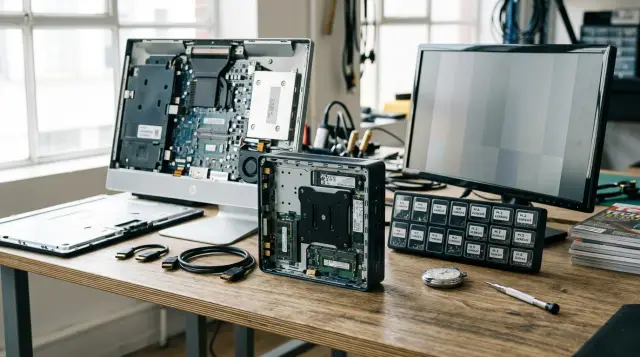
In a cramped office, an all-in-one wins on outward neatness, while a VESA-mounted mini PC usually wins on repairability. But that is not a law of nature. An all-in-one with a removable service cover can be quicker to maintain than a mini PC locked between a monitor and a bracket, where the whole assembly must come down to reach one drive.
That is why you should not compare photos of workstations or the number of boxes in a specification. Compare the replacement unit, the technician's route to the RAM and SSD, the spare pool, the cable layout, and the actual minutes of downtime. I have seen too many purchases where one hidden screw or an uncommon power adapter turned a neat workstation into two hours of dismantling furniture.
The replacement unit determines downtime
A mini PC and monitor remain two independent units, so a failure in one usually leaves the other available. If the monitor goes dark, a technician installs a spare display and leaves the computer, its system, data, and settings in place. If the mini PC fails, the monitor continues working with a replacement computer. This separation is especially useful when a team supports many identical desks and keeps a small exchange pool.
In an all-in-one, the computing hardware and display share one enclosure. That reduces the number of separate items on the desk, but changes the effect of a failure: a cracked panel sends a working system board away for repair, while a computer power fault temporarily removes a working screen. An internal repair may replace only the failed module, but the user still loses the whole device during diagnosis.
There is an important distinction that commercial comparisons often blur: modularity during repair and modularity during operation are not the same. Inside an all-in-one, the panel, board, memory, and drive may be separate parts. For an on-site administrator, the entire enclosure still remains one issued unit. A mini PC and monitor provide two units before anyone reaches for a screwdriver.
First decide what the local support team actually does: repair boards and panels at a bench, or exchange complete devices and send failed ones to a service center. A separate pair is almost always easier for an exchange model. For a qualified workshop, an all-in-one with sound documentation and available modules can be perfectly manageable.
A separate display is replaced without migration
Replacing a monitor beside a mini PC usually means disconnecting display power and the video cable, moving the stand or bracket, and reconnecting two plugs. User data, disk encryption, device enrollment, and application licenses do not change because the computer stays in place. Avoiding migration saves more time than a few minutes with screws.
A broken or dim panel in an all-in-one creates a fork in the repair path. You can replace the panel inside the enclosure if the manufacturer supplies a compatible part and service policy permits the work. Or you can issue another all-in-one and migrate the profile, certificates, local files, and bound licenses. The first path needs skill and a part; the second needs a prepared system image and a sensible data storage policy.
Do not treat replacing an internal panel as equivalent to replacing a normal monitor. The technician removes the rear cover, disconnects an internal ribbon cable, works around the bezel and antennas, then tests the backlight, touch layer, and camera if they are built in. The exact sequence varies by model. Without a service manual, the promise that the panel can be replaced separately says almost nothing about the duration of the job.
An all-in-one has a practical advantage at a reception desk, checkout area, or medical room: an employee cannot accidentally carry off the computing unit or swap video cables. But the repair plan must include a complete spare device. If the position cannot remain empty, prepare a replacement all-in-one with the same image, mounting hardware, and peripheral set, not merely a spare panel in storage.
Ask the supplier to demonstrate replacement of the display assembly before purchase. You need an action sequence, tool list, panel part number, and warranty rule, not claims about serviceability. If removing the panel requires peeling off a bonded bezel, the work cannot honestly count as a quick repair at the desk.
Test access to RAM and SSD by hand
Enclosure type does not guarantee accessible memory and storage. On one all-in-one, a separate hatch exposes the SO-DIMM and M.2 slots in minutes. On another, the same job requires removing the stand, rear panel, metal shield, and several ribbon cables. A mini PC can also be convenient or irritating: its base may open with four screws, or the VESA plate may pin it down so the monitor must come off the wall or arm first.
The official Intel NUC DC53427HYE guide is useful as a concrete example, not a universal promise for a device class. It separately shows how to open the enclosure, install SO-DIMM memory and storage, and fit the VESA bracket. The purchasing method follows from that: inspect the manual for the exact model and the operation sequence in its installed position. The term "mini PC" guarantees nothing by itself.
Check four things. First, can the service cover open without removing the display from its bracket? Second, does the VESA plate cover any screws or clips? Third, does the machine use standard SO-DIMM and M.2 parts, or soldered components and a proprietary drive? Fourth, does opening it yourself affect the warranty?
RAM has another trap: a free slot does not equal a valid upgrade. You need a supported memory type, maximum capacity, matched module configuration, and available firmware. For an SSD, check module length, interface, room for a heat spreader, and the method for transferring encryption keys. A drive can fit the connector physically and still fail to boot the prepared workplace image.
A good acceptance test is simple: give a new technician the device, its manual, and the usual tool kit. The technician must remove it from service, replace one memory module and the SSD, reassemble it, and boot a diagnostic system. Time the complete job, recording minutes at the desk separately from minutes at the bench. This test immediately exposes screws beneath the mount, stubborn clips, short ribbon cables, and tasks that need two pairs of hands.
One visible cable does not mean a simple layout
An all-in-one usually provides the cleanest desk: one power cable to the enclosure, followed by short connections for the keyboard, mouse, and network. With wireless peripherals, almost nothing remains on the surface. That matters at narrow counters, meeting rooms, and reception areas because cables do not catch documents or fill the cable tray.
A mini PC behind a monitor needs at least computer power, display power, and a video connection. Wired networking and USB peripherals add their own lines. Short cables and ties on the monitor arm can hide them, but a concealed bundle does not disappear. It merely moves to a place where a technician has more trouble seeing labels and reaching a latch.
Count the connectors that must be restored correctly after a replacement, not the visible wires. Label both ends by workstation and purpose. Leave a service loop so the mini PC can come out of its holder without pulling on a connector. Mount power adapters where they can be replaced without dismantling the desktop or a wall panel.
USB-C can sometimes reduce the layout when one tested path carries video, data, and enough power. But a buyer must confirm the port capabilities on both ends, power delivery, wake behavior, and cable compatibility. The same connector shape does not promise the same functions. One questionable cable can make a neat layout less dependable than three straightforward connections.
An all-in-one has fewer cables, but damage to a built-in port costs more. On a separate pair, a failed video input can be bypassed with another monitor input, or the display can be replaced. In an all-in-one, a loose power or USB port may require a system board repair. Neatness and repairability pull the decision in different directions.
Break repair time into operations
The phrase "repair in 15 minutes" is useless when the clock starts after the device reaches a workbench. User downtime begins at failure and ends when the employee enters the work environment, sees the required files, prints, and opens the specialist application. Technician travel, finding the mount key, and recovering encryption all count.
A typical fast mini PC case looks like this: confirm which unit failed, disconnect labeled plugs, remove the unit from its holder, install a prepared replacement, reconnect everything, and test the display, network, and peripherals. The failed computer can be diagnosed later. Speed comes from a ready spare and a repeatable cable layout, not from a small enclosure.
An all-in-one can be exchanged in much the same way if it sits on a normal stand and a replacement is ready. A wall or desk mount may require a second person because of the device's size and weight. The user environment must then be restored. A cloud profile helps, but local certificates, specialist drivers, tokens, and large files often remain separate work.
I use two measures. TTR-seat records the time until the employee's workstation returns to service. TTR-device records the time until the failed device is fully restored to the spare pool. A separate pair often shortens the first measure because a smaller unit changes. The second depends on the construction, part availability, and service agreement.
The timing record should use the same shape for every test:
Workstation: B-17
Failure: display / computing unit / SSD / RAM / power
Until replacement: 00:18
Until user login: 00:27
Until device returns to reserve: 1 day 03:40
Healthy units removed: monitor
Tools: PH1, plastic pry tool
Obstacle: VESA plate covers two screws
The final two lines matter more than a polished average. They show why the job ran long and which working part had to be removed unnecessarily. After several trials, the purchasing team will see repeated obstacles without invented coefficients.
Upgrade cycles diverge by the third year
A monitor often outlives the computing unit in useful service. For office work, its resolution, size, and panel quality may still satisfy employees after the processor, memory, or port selection no longer meets new requirements. A mini PC lets the organization replace the computing unit while keeping the display, mount, and some of the cabling.
An all-in-one is upgraded as a whole unless the platform supports a newer compatible system board. The organization retires a working panel with an outdated computer, or finds a secondary role for the complete device. That is not always bad: a single replacement cycle simplifies inventory, images, and the visual workstation standard. The cost of that simplicity is a larger replacement unit.
The reverse situation also occurs. You may want to replace a cheap monitor with a poor stand, uneven backlight, or inadequate resolution before a good mini PC. Separation helps again, this time in favor of the computer. Do not designate the display as the long-lived component in advance. Set the expected cycle for both units and test it against the needs of each job role.
An upgrade plan must address mount, power, and image compatibility. A new mini PC may not fit the old holder, may block ventilation, or may need a different adapter. A new all-in-one may move the ports and change the weight so the old arm no longer works. A standard hole pattern removes only part of the risk.
VESA calls its document the Flat Display Mounting Interface standard and describes interfaces for different flat-display installations. It provides a useful mechanical foundation, but does not promise access to a mini PC cover, compatibility with an extra holder, or the rated load of a particular arm. Check the full assembly: monitor, adapter plate, computer, cables, and movement range.
Tight quarters change mounting requirements
In a narrow room, a technician services a workstation beside a wall, the next desk, and people who are still working, not an enclosure in isolation. An all-in-one on a stand can often be carried to a bench as a complete unit. A mini PC behind a monitor may be unreachable without turning a heavy arm, removing the display, or clearing the neighboring area. A small computer volume does not automatically mean a small amount of work.
Before purchase, build a mock-up of the tightest location, not a spacious demonstration desk. Check whether a screwdriver fits, serial numbers are visible, a latch can be held with one hand, and there is somewhere to put the removed panel. Leave the ventilation clearance specified by the manufacturer. An enclosure wedged between a monitor and a wall among power adapters will collect warm air and dust regardless of how tidy it looks from the front.
The mount must permit safe removal. If a technician has to support the monitor with a knee while unscrewing the mini PC, the assembly is unsuitable for a large office. Use captive screws or a safety restraint where the mounting system provides for one, and keep the proper tool on site. Do not substitute random long screws for the specified ones because they may press into the display enclosure.
An all-in-one reduces accidental reconnection errors, but it is heavier to move and takes more room in the spare pool. A mini PC is easier to store and transport, but weak inventory practices make it easy to mix up devices between desks. The asset label must be readable in the installed position, and inventory records should link the computer, monitor, and workstation as separate assets.
Do not overlook data. Replacing a monitor does not touch the drive, which simplifies the job. Removing a mini PC or complete all-in-one takes a device containing data out of a controlled room. The procedure must assign responsibility, record the movement, and forbid leaving a removed SSD untracked. A physically small computer is especially easy to place in the wrong container.
Ownership cost begins with spares
Purchase price is a poor predictor of service cost. For a fair comparison, add spare devices, monitors, power adapters, mounts, technician labor, storage for large enclosures, and the cost of employees' working time. Do not reduce everything to a universal failure percentage without your own records: construction, workload, and room conditions outweigh a tidy average.
A mini PC reserve can be split. Several displays cover broken panels, several computing units cover system failures, and standard cables and power adapters are stored separately. This is more precise, but the storeroom gains more part numbers and compatibility relationships. An all-in-one exchange pool has a simpler catalog, but each unit is larger and costs more as a complete set.
A warranty also has an operational price. Ask whether your team may replace RAM and SSD, who pays for shipping, whether the owner can retain the drive, and how long the supplier keeps compatible parts. A promise of 24/7 support is useful only with a clear contact route, coverage area, and exchange procedure. Put those terms in the contract instead of guessing them from a logo on the enclosure.
When comparing local options, a request to GSE can include Kazakhstan-made M200 all-in-ones along with system integration, 24/7 technical support, and a nationwide service network. Test them with the same dismantling and exchange scenario, without giving extra credit for origin or an attractive specification.
A working decision matrix can look like this:
| Criterion | Weight for the role | All-in-one | Mini PC + monitor | Evidence |
|---|---|---|---|---|
| Display replacement without migration | high | no | yes | operation demonstration |
| On-site RAM and SSD access | high | model dependent | model dependent | timed test |
| Number of connectors to restore | medium | fewer | more | cable diagram |
| Spare pool volume | medium | larger | smaller by unit | storage plan |
| Partial upgrade | high | rare | usually possible | lifecycle plan |
Do not award a score without evidence in the last column. A manual, trial disassembly, photograph of the installed unit, and service contract qualify. The supplier's phrase "easy to maintain" does not.
The location and support model decide
For a normal office with its own support team, standardized monitors, and a planned computing upgrade cycle, I would choose a mini PC in an accessible holder. It lets the team replace the screen and computer separately, keep compact spares, and avoid retiring a good panel when the platform changes. There is one condition: the mount must not cover the service hatch or connectors.
For a reception counter, classroom, meeting room, or workstation without an on-site technician, an all-in-one often makes more sense. Fewer external connections, one serial number, and a clear complete-device exchange can outweigh the cost of a combined failure. Look for a model with a removable service cover, standard memory and drive modules, a documented display replacement, and an available exchange pool.
Do not choose the device type before testing the selected configuration. Take one sample of each, install them in the tightest location, and stage four failures: display, SSD, memory, and power. Have the technician who will actually visit the site perform the work with the tools and spares that will really be stored there.
The winner will not be the enclosure with fewer parts in a promotional photo. It will be the configuration that gets the employee working sooner, removes fewer healthy units, and allows the organization to replace only the part that has actually become outdated.
Frequently asked questions
Which is more reliable for an office, an all-in-one or mini PC?
Reliability depends on the exact model, cooling, and installation conditions, not the form factor label. A mini PC separates display failure from computer failure, while an all-in-one reduces external connections.
Can the screen of an all-in-one be replaced separately?
The panel can be replaced separately in many models, but the job may require full enclosure disassembly and a specific part. Ask for the service manual, panel part number, and warranty rules before purchase.
Is it easy to add RAM to an all-in-one?
Only when the selected model has an accessible cover and replaceable modules. Check the slot count, maximum capacity, supported memory type, and whether the enclosure can be opened without affecting the warranty.
Can an SSD in a mini PC be replaced without removing the monitor?
Sometimes, but the VESA plate often covers the base or its screws. Test the device on the selected mount, not separately on a table.
How many cables does a mini PC behind a monitor need?
It usually needs power for the mini PC, power for the monitor, and a video cable, with networking and USB peripherals added afterward. One compatible USB-C path can reduce the connections, but its functions and power must be confirmed at both ends.
Which option is quicker to replace after a failure?
A prepared unit with labeled connectors is the quickest to replace. A separate pair lets the team exchange only the monitor or computer, while an all-in-one is usually exchanged as a complete device.
Which option lasts longer before an upgrade?
A mini PC more often lets the organization keep a good display and replace only the computing hardware. An all-in-one is easier to upgrade on one schedule, but the working panel is replaced along with the computer.
Is a VESA mount enough to ensure mini PC compatibility?
No. The display mounting standard does not guarantee that a mini PC holder will fit, leave ventilation clear, or preserve access to the cover. Check the full assembly and its rated load.
How can service costs be compared before purchase?
Count the exchange pool, labor, delivery, storage, user downtime, and partial upgrades. Then run the same display, SSD, RAM, and power failure tests on real samples.
When is an all-in-one better for a cramped office?
An all-in-one is better when minimal cabling, one inventory unit, and quick complete-device exchange matter most. Choose a model with documented service access and reserve space for a spare enclosure in advance.