8 min read
RMM in a Closed Network: Choosing Tactical RMM, MeshCentral, RustDesk
How to choose Tactical RMM, MeshCentral, or RustDesk for RMM in a closed network, deploy on‑prem and meet security requirements without losing usability.
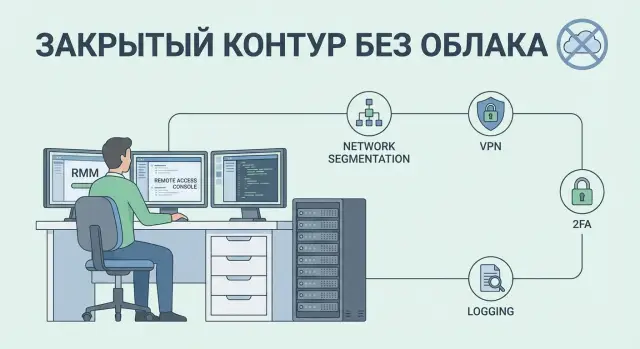
What RMM in a closed network is and the pain it solves
RMM (Remote Monitoring and Management) are tools for remotely monitoring and maintaining workstations and servers: collecting status, inventorying devices, scheduling tasks, basic policies and helping users.
Unlike “just a remote desktop,” RMM is not limited to a one‑time screen connection. It helps you see the whole estate and act by rules: what is installed, what is broken, what hasn’t been updated for a long time, and what can be fixed without manual workarounds.
When people talk about RMM in a closed network, they usually mean an environment where cloud usage is prohibited by regulations or risks. Reasons vary: security requirements, personal data, classified information, critical infrastructure or simply not wanting to give control to a third party. In practice organizations want to eliminate clear risks: telemetry leaks, unpredictable traffic routes, dependence on external availability and difficulty proving who accessed what and when.
At the same time, support must remain convenient. Typically, the non‑negotiables are:
- device and software inventory to quickly answer “what do we have”
- update and patch control so you’re not permanently vulnerable
- remote help for users so engineers don’t have to visit every office or branch
- action logging to analyze incidents and pass audits
“Closed network” in practice is not one server in a basement, but a set of constraints: network segmentation (office, server room, branches), a strict perimeter, access only through agreed entry points and rules for admin privileges. In government bodies and banks, support engineers often can’t “just connect via TeamViewer,” but they can work through a dedicated gateway, by request and with session recording. The task for on‑prem tools is to provide the usual convenience while staying inside your infrastructure and under your control.
Minimal security controls for no‑cloud support
To prevent remote support in a closed network from becoming “shadow access,” security teams usually request a set of controls rather than a specific product. If these controls are met, solutions like Tactical RMM, MeshCentral or RustDesk are easier to fit into policy.
First — access control and least privilege. Every engineer should have a personal account, and rights should be granted by role. Some people only need “view,” others need session access without installing software, and administrative functions remain with a small, restricted group.
Second — strong authentication. Minimum: strong passwords and no shared accounts. Better: 2FA for console access and separate privileged accounts so everyday work and “dangerous” actions are separated. Decide in advance how to grant contractor access: limited duration, a separate role, and quick revocation.
Third — logging and preservation of traces. You must be able to see who connected, to which device, from where, when, how long and what actions were performed. At minimum this includes session starts, file transfers and command execution. Logs are best stored centrally, with an agreed retention period and named owners.
Fourth — requirements for communication channels. You need traffic encryption and a clear scheme of network flows. Many organizations prohibit direct incoming connections to workstations. A safer and more convenient model is agents initiating outbound connections to an internal broker server, and engineers connecting to that server via VPN or a dedicated admin segment.
Finally — a policy. It should state when you can connect without user confirmation, how emergency access is documented, how ticketing works and where logs are kept. Then “remote support without the cloud” becomes a managed process, not an exception.
Basic deployment architecture: server, agents and engineer access
The core of RMM in a closed network is the “management server + agents” model. An agent is installed on each PC or server and maintains a secure connection to the management server. This removes routine friction: you don’t need to find the user, ask them to run a program, read a code or keep a window open every time.
Engineers see the device fleet, status and inventory, and perform actions by rules rather than by memory.
The on‑prem server is usually placed in a separate segment near administrative services (AD, DNS, NTP, update repositories). If external connections are required, don’t rush to put the RMM server in a DMZ. It’s often safer to keep the server inside the internal network and expose only the engineer entry point (jump‑host or VDI) with strict policies and auditing. DMZ is appropriate when you must accept connections from unfamiliar networks, but then minimize open ports and strictly control outbound traffic.
Engineer access should be arranged so that only admin workstations reach the RMM. Typical options (or combinations) are:
- jump‑host in the admin segment with MFA and session recording
- VPN only for devices that comply with policy (certificates, EDR)
- VDI/terminal server with centrally installed and updated tools
Control points must be clear to security. On the firewall record who connects where (management server, repositories, branch nodes). A proxy helps limit outbound traffic and simplifies investigations. IDS/IPS and centralized log collection (authentication, commands, remote sessions) provide proof: who connected, to which host and what they did.
Branches usually bring challenges like NAT and flaky links. A workable pattern is agents always initiating connections from the branch inward over allowed directions, and scheduling maintenance windows: heavy updates and scripts at night, monitoring and light tasks during working hours.
In projects equipping workstations and servers where local supply and 24/7 support matter, this scheme noticeably reduces downtime: an engineer logs in through a single point, and branches don’t need public addresses or constant manual connections. GSE.kz often uses this approach in deployments and support across Kazakhstan.
Selection criteria: what to compare between Tactical RMM, MeshCentral and RustDesk
If you need RMM in a closed network, first define the scenario.
For helpdesk you need fast screen sharing and user consent. For managing a workstation fleet inventory, scripts and alerts matter more. For servers, agent reliability and operation without user interaction are critical. For critical workstations (medical, financial) access control and action traces are top priorities.
It is convenient to compare tools by several blocks.
1) Coverage and agents
Check supported OSes and device types, and what exactly is installed on the endpoint. Clarify whether the agent can work in a segment without internet, how it updates, and what happens when certificates or server addresses change. In closed networks the decisive question is often not “is there an agent” but “how safely can you deploy and maintain it.”
2) Management and access features
Separate expectations for RMM and for remote access.
RMM is evaluated by inventory, script execution, patch management, remote console and alerts. Remote access is judged by image quality, latency, proxy handling, user confirmation and session recording.
A short checklist for selection usually includes:
- inventory and reports (hardware, software, changes)
- automation (scripts, scheduling, results)
- patches and updates (who approves, how to roll back)
- remote access (consent, recording, action log)
- alerts (what constitutes an incident and where alerts go)
3) Rights and operation
Check for roles, groups and division by departments or branches. Example: a branch engineer sees only their PCs, while central security has access to logs and session recordings.
Then consider operation: how to update the server without downtime, how to back up, recovery time objectives and whether the solution itself is monitored. Often these operational aspects determine whether support stays convenient after six months, not just on pilot day.
Tactical RMM: strengths and where extra measures are needed
Tactical RMM is often chosen when you must manage many workstations without drowning in manual tasks. It’s about inventory, state control and automation: who’s connected, what’s installed, which updates and tasks ran, and where errors appeared. In such a mode RMM in a closed network gives the most value as a “fleet control dashboard.”
Tactical RMM’s strength is daily operations: an agent on PCs, inventory, running tasks and scripts, and basic policies. You can collect disk and antivirus data daily, run cleanup weekly and trigger auto‑scripts on disk‑full alerts. On typical hardware this saves engineers a lot of routine work.
Before implementation verify your infrastructure:
- where the server will run (VM or physical), and whether resources are enough for growth
- which database is used and who maintains it
- how updates are organized: a test staging area and rollout window
- how backups are performed (DB, configs, keys) and how recovery is tested
From a security perspective Tactical RMM almost always requires disciplined configuration. Minimum: separated roles (observer, operator, admin), separate admin accounts, no shared logins, and action logging. Segmentation helps: RMM server in the admin segment, engineers only accessing it via a dedicated path (e.g., jump‑host), and agents communicating with the server on strictly required ports.
A limitation to remember: the convenient interactive screen experience “like classic remote support” may not be Tactical RMM’s primary focus. For interactive user help teams often add a separate on‑prem remote access tool and keep Tactical RMM as the center for inventory and automation.
MeshCentral: convenient on‑prem access and basic device management
MeshCentral fits when you need convenient remote access and basic device management without the cloud. It’s often chosen where browser access is important and you want devices, permissions, inventory and remote sessions in one place.
Typical practical use
A MeshCentral server is usually installed inside the closed network and devices connect via an agent. Engineers log into the web interface and see devices grouped: “accounting,” “POS,” “server room,” “branch‑1.” This makes it easier to avoid confusion and apply consistent access rules across a segment.
Typical scenario: the head office has a support team and a branch has several PCs and one local admin. MeshCentral lets you give engineers access only to the branch group, require user confirmation on workstations, and keep silent access for servers where policy allows.
Security settings to enable from the start
To avoid a “shared password for everyone” situation, enable basic measures:
- 2FA for all engineers (especially admin accounts)
- roles and least privilege: who can view, who can connect, who can change settings
- user confirmation for user workstations (with a separate rule for servers)
- disable weak protocols and unused features
- personal logins instead of shared accounts
The idea is simple: convenience remains, but each action is tied to a person and allowed only where needed.
Logging and action control
Logs often resolve half the disputes in incidents and audits. It’s important to record at least: logins and login attempts, role grants, remote session starts, file transfers (if enabled) and power commands (reboot/shutdown).
Store logs centrally inside the network with a clear retention policy. If logs only live “on the server as is,” they’re easier to lose during failure or upgrade.
Limitations: security often fails due to process, not software
MeshCentral provides many features, but security often breaks not because of missing functions but due to lack of discipline. Typical organizational mistakes: overly broad groups, no separation of access to servers and user PCs, orphaned accounts, and rights that aren’t reviewed for months.
If rules are defined in advance (who connects to what, when confirmation is required, how emergency access is handled), MeshCentral becomes a convenient on‑prem tool that meets security requirements and doesn’t hinder support.
RustDesk: how to use it without the cloud and without surprises for security
RustDesk is often chosen when you need a fast remote screen without cloud dependence or heavy RMM overhead. It suits one‑off connections to workstations, immediate user help and segments where traffic must not reach the internet.
The key question for security is where your ID/relay is and where clients actually connect. To avoid hidden dependence on public infrastructure, host your own RustDesk server (ID + relay) inside the network and forbid using public servers in policy. Technically enforce this: configure clients to use your server and block unnecessary external destinations at the firewall.
Settings security teams commonly require
“Without surprises” means clear control of access and privileges. Typical minimum requests:
- strong passwords/one‑time codes and ban simple static passwords
- allowlists (who may connect to which nodes) and group separation
- time limits (support windows) and session auto‑disconnect on timeout
- individual engineer accounts and ban on shared logins
These points are easier to audit and explain to the business.
How to include it in the support policy
To keep users confident that there’s no “invisible access,” require that connections happen either with user confirmation or by a pre‑approved ticket. Also require a stated reason for the connection (ticket number) and store session recordings where security can request them.
RustDesk’s limitation is that it’s primarily remote access, not a full RMM: less automation, inventory and update policy. Therefore it’s often used in combination: RustDesk for screen access and another tool for inventory, scripts and state control.
How to assemble a solution: one tool or a combination
People often confuse two tasks: RMM and remote screen access.
RMM is responsible for device inventory, status (online, disks, updates), scheduled tasks, automation (scripts) and for making support auditable. Remote access is needed when an engineer must see the screen, help a user or access a server console.
Trying to cover everything with a single tool usually compromises either security or convenience. A more practical model is a combination: RMM for control and automation, plus a separate component for screen access. For example, Tactical RMM as the center for inventory and tasks, and MeshCentral or RustDesk for local screen access.
Single entry point for engineers
To avoid turning a closed network into a set of “holes,” create one clear entry: a jump‑host (bastion) or an engineer workstation in the admin segment, access via VPN, mandatory MFA and separate role accounts.
Short rule: engineers do not access workstations directly from arbitrary networks. They access RMM and remote screen only from a controlled zone, and rights are role‑based (e.g., first‑line without server access, second‑line with extended rights).
Logs and pilot: no trust without proof
In a closed network it’s not just access that matters but proving it. Agree in advance which events are logged (logins, session starts, script execution, policy changes), where they are stored, retention time and who may view them.
Before production run a test stand: a pilot on 10–30 machines of different types (PC, server, laptop, branch over a slow link). Success criteria should be measurable: agent stability, connection time, session quality, log completeness, ease of granting and revoking rights. A pilot like this is easier to approve with security and then scale across the network.
Deployment scheme without the cloud: step‑by‑step plan
Start with a short description of your environment: which contours exist (office, data center, branches, lab), network segments, and which device groups you will support. It helps to separate the fleet into critical (servers, workstations with personal data), regular workstations and test machines. This prevents mixing rules for different access and updates.
Next decide where the server components will live and how engineers will access them. For closed networks choose one of: access only from the admin segment, VPN with MFA, or jump‑host with strict roles. The higher the security requirements, the more jump‑host with session recording wins out.
Implementation steps
- Deploy the server(s) in the chosen segment and enable TLS, roles, 2FA and password policies from the start. Create service accounts and forbid shared logins.
- Connect a small test group and check sharp spots: agent installation, rights for remote commands, updates and inventory collection.
- Configure logging and log retention: who connected, to what, when and what was executed. Verify you can export logs for auditors.
- Establish a support policy: work by ticket, approvals for critical nodes, maintenance windows. For remote sessions — recording or at least mandatory comments.
- Prepare a scaling plan: group policies, role templates, separate rules for branches and slow links.
After the pilot move to operation: regular updates (with a staging area), backups of configurations and keys, monitoring of server availability and short training for engineers.
Example: organizing branch support in a closed network
Typical scheme: a central office and 5–20 branches. Central office hosts critical systems (accounting, finance, servers). Branches have workstations for cashiers, medical staff or teachers, plus 1–2 local servers. The goal is to keep remote support convenient while meeting security: no cloud, access only from the admin segment and all actions logged.
The architecture usually looks like this. A management server (for example Tactical RMM for inventory and tasks) and a separate remote‑access server (MeshCentral or RustDesk) are deployed in a protected zone in the central office. Engineers don’t access them directly: they first log into a jump‑host in the admin segment and then use the console. Branch connectivity is via VPN with limited routes: only required ports and only from authorized nodes.
Support process should be codified. A typical flow is:
- user creates a ticket, operator records the device and priority
- engineer connects after user confirmation (or during a pre‑approved maintenance window for servers)
- remote session is recorded (video/action log) and tied to the ticket number
- after work the engineer leaves a short report: what was done, which commands ran, what changed
- the ticket is closed after verification by the user or branch responsible person
To prevent RMM becoming a “black box,” agree in advance how to measure its effect. A practical minimum:
- response and recovery times by incident type
- share of devices with an agent and current policies
- number of repeat calls for the same reason
- number of security incidents (unauthorized access attempts, role errors)
After 3–4 weeks these metrics show where rights need tuning, where roles need adjustment, and where the issue is process and not tools: ticketing, confirmations and change tracking.
Common mistakes when deploying on‑prem RMM and remote access
The main reason on‑prem support fails is not the tool choice but making access “as fast as possible” and then trying to retrofit security. If you build RMM in a closed network, separate user and admin zones from the start.
The most dangerous mistake is letting engineers access user networks directly. Without a jump‑host or at least a dedicated admin segment with strict rules, compromised support credentials become an easy lateral move across the infrastructure.
Second common problem — shared accounts and no roles. Then you cannot determine who connected to a specific PC or what was changed, which breaks investigations and audits.
People often forget backups for the management server and a recovery plan. While everything runs, this is invisible. But after a disk failure, bad update or configuration error you can lose access to agents and remote sessions at the worst moment.
Another source of chaos is ad hoc agent installation. Without groups, policies and an update process, some devices fall out of control and updates become a manual lottery.
Before production check the basics:
- a separate path for engineers (jump‑host or admin VPN into a dedicated segment)
- personal accounts, roles and mandatory MFA where possible
- regular backups and recovery tests (not just “file exists” but an actual restore)
- group structure and agent policies, plus an update schedule
- centralized log collection and retention agreed with security
And one more risk — skipping the pilot. Rolling out to the whole organization immediately surfaces incompatibilities, network load and unexpected blocks from security tools. A pilot on 20–50 devices in one branch is almost always cheaper than one hour of downtime in accounting or registration.
Quick checklist and next steps
Before putting RMM in a closed network into production, run a short check. It covers typical security questions and helps preserve engineers’ convenience.
Checklist before launch
- Access: enable MFA where possible; create roles (engineer, admin, auditor); forbid shared accounts; separate interactive and service accounts.
- Network: place server(s) in a separate segment; allow only necessary traffic through the firewall; prefer outbound agent connections from branches rather than opening inbound ports.
- Logs: ensure logins, remote sessions and admin actions are recorded; define retention and owners; regularly verify logs are collected.
- Operational readiness: set up backups of configs and keys, update schedules and availability monitoring; perform a recovery test.
- Processes: agree maintenance windows, temporary access granting, privilege handling and incident procedures (what to do if compromise is suspected).
If unresolved issues remain after these checks, it’s a sign to clarify architecture or policy rather than “cramming” settings at the last minute.
Next steps
- Run a pilot on 20–50 devices: separate workstations and servers, with real support tasks.
- Do a short risk assessment with security and first line: which actions are allowed, which need confirmation, and where a “two‑eye” principle is required.
- Fix convenience metrics: connection time, share of successful sessions, response time, number of manual workarounds.
- If you need help with on‑prem infrastructure and deploying under regulations (servers, segmentation, integration with your IT environment, 24/7 support), a system integrator usually covers this. In Kazakhstan GSE.kz handles supply, local hardware deployment and ongoing integration to meet customer requirements.
Frequently asked questions
What exactly does “RMM in a closed network” mean?
RMM in a closed network is a monitoring and management system for PCs and servers deployed inside your infrastructure without relying on the cloud. It provides inventory, device status, scheduled tasks, basic policies and control over engineers' actions via logs.
How is RMM different from “just a remote desktop”?
A remote desktop solves a one-off task like “look at the screen and help,” but it does little to manage the fleet. RMM shows the whole estate, records state and changes, lets you run scripts and tasks, and leaves traces of actions — which is important for audits and investigations.
What real problem does RMM without the cloud solve?
Typically the pain is manual workarounds, blindness over the estate, update chaos and the inability to prove who did what. On‑prem RMM reduces on-site visits, speeds incident response and makes support auditable through roles, logging and controlled network flows.
Which security requirements should be included from the start so the solution will be approved?
The minimum set: personal accounts, roles and least privilege, strong authentication (preferably 2FA), logging of logins and actions, encrypted traffic and a predictable connection scheme. Also agree the policy: when you can connect without user confirmation, how to grant emergency access and where logs are stored.
What deployment architecture is considered normal for a closed network?
A common working scheme is “management server inside the network + agents,” where agents initiate outbound connections to the server. Engineers access the console only from a controlled zone: via a jump‑host, admin VPN or VDI, so they don’t connect to workstations directly from arbitrary networks.
Do you need to place RMM in a DMZ if there are remote engineers?
If external engineers need to connect, it’s safer to organize a protected admin entry point rather than opening RMM directly. Usually that’s a jump‑host or VDI with MFA and auditing, while the RMM server stays in the internal segment; this simplifies access control and investigations.
When is Tactical RMM the best choice, and when is it not enough?
Tactical RMM is often chosen as the fleet management center: inventory, tasks, automation and basic state control. It’s especially useful when there are many workstations and you need to reduce manual work. For highly interactive screen sharing, teams often add a separate on‑prem remote‑access tool.
For which scenarios is MeshCentral the best fit?
MeshCentral is typically chosen when you need convenient browser-based remote access and simple group and rights management without the cloud. It’s good for helpdesk and branch scenarios, but security still depends on discipline: roles, 2FA, separating access to servers and user PCs, and careful logging.
How to use RustDesk without the cloud and without conflicts with security teams?
RustDesk is primarily a fast remote‑screen tool, not a full RMM. To avoid surprises for security teams, host your own ID/relay server inside the network, disallow public servers, and enforce rules: who can connect, for how long, and whether a request or user confirmation is required.
How to start deployment and how to know the pilot was successful?
Start with a pilot on varied devices and segments; check agent installation/update, remote session quality and log completeness. Before production, set up backups and recovery tests, roles and MFA, and a single engineer entry point. In projects needing local hardware and 24/7 support, these tasks are often handled by a system integrator — for example, GSE.kz in Kazakhstan.