8 min read
PC Configurations for Organizations: Profiles for Different Roles
PC configurations for organizations: how to create clear profiles for operators, office employees, engineers and managers and simplify purchasing.
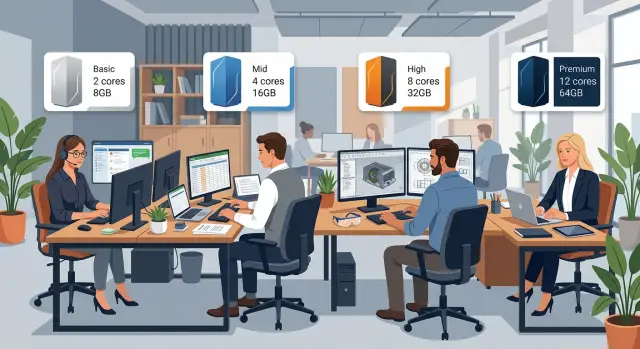
Why organizations end up with too many configurations
A computer fleet often grows without an overall plan. One department urgently buys laptops, another chooses desktop PCs from a familiar supplier, and a new employee receives a device from stock. After a few years, the company is using dozens of models with different amounts of memory, processors, ports and warranty periods.
This makes it harder to purchase computers for the company. Specialists have to compare offers that cannot easily be compared, and the required model may be out of stock. Small batches usually cost more than buying several pre-approved options.
Support also takes more time. The IT team has to keep different drivers, power supplies and spare parts, prepare separate instructions and spend longer finding the cause of a failure. When an employee’s computer breaks down, it can be difficult to provide a quick replacement: a model that looks similar may not support the required software or a second monitor.
The reason is that employees do different kinds of work. An operator spends most of the day using a browser, email and an accounting or business system. An office employee prepares documents and spreadsheets and joins video calls. An engineer opens heavy drawings, 3D models or large data sets. A manager usually needs mobility, video communication and convenient connection to a workplace.
One universal computer rarely suits everyone. If every employee receives a powerful engineering workstation, the organization overpays for processors, graphics cards and memory that most people never use. If the company buys inexpensive office PCs without considering engineers’ tasks, programs will run slowly, and the IT team will have to upgrade memory or replace devices sooner.
PC configurations for organizations should depend on roles, not personal preferences or occasional promotions. Three or four profiles are usually enough for most employees. Exceptions are acceptable, but they should be documented: an employee may need certified software, an additional graphics card or a specific set of ports.
Workplace standardization does not mean giving everyone the same computer. The company approves a small set of clear options in advance and defines which type of work each one supports. This makes it easier to plan the budget, deliveries, device replacement and maintenance.
Start with the tasks of each role
Do not begin purchasing with a list of employees or familiar brands. Start by identifying roles: contact center operator, accountant, sales manager, design engineer and department manager. People with different job titles may use the same set of programs, while employees with the same title may work in very different ways.
Describe a typical working day for each role. List the programs, file types, number of open windows, need for two monitors, and requirements for a headset, scanner, printer or docking station. This turns requirements into a clear basis for a PC configuration for the organization.
For example, an operator works in a browser, CRM system and telephony software and often keeps several tabs open. A stable connection, a comfortable headset and enough memory matter to this employee, but a dedicated graphics card does not. An engineer who opens large drawings or 3D models puts a different load on the computer. This role needs a more powerful processor, more RAM and a graphics card selected for the software being used.
Separate everyday work from exceptions
Rare requests can quickly inflate the budget. If one employee edits a short video once a quarter, there is no need to buy a powerful workstation for the entire group. When necessary, that person can be given access to a separate high-performance PC.
Divide requirements into regular tasks, programs that work cannot continue without, and occasional activities. List large files and calculations, peripherals and workplace conditions separately. This matters more than a long list of preferred specifications.
Do not rely only on an IT department survey. IT sees requests and failures, but a department manager knows better which processes will change in the coming months. Accounting may move to a new reporting system, sales may switch to another CRM, and an engineering team may start working with heavier models.
Ask managers to confirm the role descriptions in a short table. They should list mandatory programs, the number of simultaneous users and the operations that cause delays. The IT team can then combine similar roles into one profile instead of selecting a separate PC for every person.
Instead of dozens of questionable requirements, you will have several options that can be tested. It will be easier to calculate the budget, equipment reserve and support workload.
Four profiles for most employees
Organizations rarely need dozens of computer options. Four profiles are usually enough: operators, office employees, engineers and managers. This simplifies computer purchasing for the company, workplace setup and ongoing support.
A profile describes the employee’s tasks, not the device brand. It specifies the amount of memory, storage type, number of monitors, need for dedicated graphics, camera and network connection method.
Operator
An operator works in a browser, CRM system, email, messenger and documents. A desktop PC with a modern entry-level processor, 8-16 GB of RAM and a 256 GB SSD is usually sufficient. Stable performance throughout the shift, a comfortable keyboard and a monitor that clearly displays tables and customer records matter more.
If an employee enters data constantly, do not cut costs on peripherals. A full-size keyboard and a second monitor are often more useful than a more expensive processor.
Office employee
This profile suits people who use spreadsheets, presentations, email, a browser and video calls at the same time. A practical minimum is a mid-range processor, 16 GB of RAM and a 512 GB SSD. For most such workstations, it is useful to plan for two monitors.
An accountant, for example, may compare data in an accounting system, view a spreadsheet and answer an email at the same time. On one screen, this turns into constant switching between windows.
Engineer
Engineering programs have different requirements, so this profile must be refined before purchasing. Work with drawings, models, calculations or large data sets usually requires 32 GB of memory, a fast SSD of at least 1 TB and a powerful processor. 3D modeling, visualization and some CAD applications require a dedicated graphics card selected according to the specific software requirements.
Engineering workstations should not be chosen according to the principle of buying the most powerful option for everyone. An engineer who works only with two-dimensional diagrams may not need expensive graphics. An employee working with heavy 3D assemblies needs it immediately, or the working day may be lost to waiting.
Manager
A manager usually needs a laptop rather than a desktop computer because meetings take place in conference rooms, the office and outside the company. A suitable configuration includes 16 GB of memory, a 512 GB SSD, a good camera, microphones and a battery that lasts through a normal working day.
In the office, the laptop can be connected to a docking station, external monitor, keyboard and mouse. The employee stays mobile while working comfortably with documents and video calls.
It is useful to approve one acceptable replacement option for each profile. Purchases will not depend on a single model being available, and the IT team will support a predictable device fleet.
Define clear parameters for each profile
A profile name alone does little to help the purchasing department. Each option needs a short specification covering the processor, RAM, storage, graphics, monitors, ports and operating system version. This prevents a supplier from replacing an important component with one that has a similar name but lower performance.
An operator working in a browser, email and an accounting program usually needs a modern entry-level or mid-range processor, 8-16 GB of RAM and an SSD of at least 256 GB. It is better not to choose a hard drive for the system because it noticeably slows down program launches and updates.
For an office employee working simultaneously with spreadsheets, video calls and many browser tabs, it is reasonable to specify 16 GB of memory and a 512 GB SSD. When working with large Excel files or several corporate programs, additional memory is more useful than a small increase in processor speed.
An engineer needs parameters tied to specific programs. CAD, 3D models and calculations often require 32 GB of RAM, a 1 TB SSD and a dedicated graphics card. Check the list of supported drivers with the software developer. A powerful graphics card without the right driver can cause more problems than benefits.
A manager usually does not need an engineering workstation. However, the profile should include 16 GB of memory, a fast SSD, a camera, microphones and suitable ports for a conference room or docking station.
Specify the number and resolution of monitors, required ports, wired networking, Wi-Fi and Bluetooth. List a webcam, headset or card reader if the employee uses it regularly.
Also check the requirements of the corporate environment: Windows version, domain compatibility, disk encryption, antivirus, VPN and business applications. An old application may work only with a particular operating system version or require an uncommon port. Find this out before the tender, not after computers have been issued.
Add a moderate reserve for the service life. For a four-year profile, 16 GB of memory is often more sensible than 8 GB, even if the current workload is low. Do not buy the maximum specification just in case. The reserve should reflect expected growth in programs, files and the number of tasks open at the same time.
How to build profiles
Prepare a role table together with department managers. For each role, record the main programs, typical file sizes, number of open applications, need for two monitors and requirements for remote work. Do not ask employees which processor they want. They can describe more accurately where the computer slows down and what they are missing.
Then assign one basic profile to each role. It should cover the normal workload and suit most employees. A sales manager usually needs a browser, CRM, email, spreadsheets and video calls. An engineer may need more RAM and a separate graphics card for professional programs.
Define permitted additions
Do not create a separate configuration for every request. Describe several additions that can be made to the basic profile without revising the entire purchase: a second monitor for spreadsheets and documents, more memory for large files, a graphics card for CAD and 3D models, an additional drive for projects or a docking station for a laptop.
Each addition should have a clear reason. This reduces disputes during approval and helps purchasing compare supplier offers.
Establish rules for upgrading a profile
An employee should receive a more powerful PC because of the task, not the job title or personal preference. The manager confirms the need, an IT specialist checks the programs and workload, and purchasing then selects an option from the approved profiles. If a task is temporary, it is better to issue equipment from the reserve than to change the standard for the entire team.
Keep specifications in one document: acceptable processor class, memory capacity, storage, graphics, monitors, operating system and support period. Include the document version and the person responsible for changes. During a repeat purchase, the company can order the same specifications or an approved equivalent even if the specific model has been discontinued.
GSE.kz can help select profiles based on office PCs, all-in-one computers and locally manufactured server solutions. The rules should still be approved first: equipment must match employees’ work, not an arbitrary set of specifications.
Example for a company with 120 employees
Imagine a company with 120 employees. Instead of separate approvals for every department, the IT team approves four profiles. The supplier prepares four specifications rather than dozens of nearly identical options.
A call center with 45 employees receives the operator profile: a desktop PC, 16 GB of RAM, an SSD and two monitors. The operator sees the customer record on one screen and telephony, email or the knowledge base on the other. This role does not need powerful workstations: they will not make calls faster but will increase the budget.
Accounting and administration, 40 people in total, use the office profile: a mid-range processor, 16 GB of memory, a 512 GB SSD and one or two monitors. This office PC handles large spreadsheets, electronic document management, reporting and video calls. A second screen is useful for employees who compare documents and data in several windows every day.
Ten designers receive the engineering profile: a powerful processor, 32 GB of RAM, dedicated graphics and an SSD of at least 1 TB. The requirements of specific programs and versions are checked in advance for professional software. When working with a large 3D model, a weak graphics card causes noticeable delays even if the other specifications look good.
The remaining 25 employees, including managers and sales staff, can use a mobile profile. This is a laptop with a docking station, external monitor, camera and headset. In the office, the employee connects the device to a large screen; while traveling, they take the same computer to meetings.
For all groups, specify the operating system, office programs, data protection, warranty conditions and service method in advance. Exceptions are possible. For example, an accountant who prepares large summary reports can receive a second monitor without changing the basic configuration for the entire organization.
Common mistakes when standardizing a PC fleet
A common mistake is buying powerful computers for every employee for future growth. A call center operator who works with a browser, CRM system and headset does not need the same PC as an engineer working with CAD models. This increases the budget, complicates repairs and does not make work faster.
Another mistake is choosing equipment based only on the initial price. An inexpensive computer with little memory may start slowing down after workplace programs are updated. The employee loses time, the IT team receives more support requests, and the company has to plan replacement earlier. When choosing PC configurations for organizations, calculate for four to five years of use, support costs and the possibility of adding memory or storage.
Do not change the standard for every request
Departments sometimes order separate models for individual employees: one person needs a different port, another needs more disk space, and someone wants the same laptop they have at home. Soon the fleet contains dozens of options with different drivers, spare parts and system images.
Employees should choose from approved profiles. The IT team and department manager review an exception request together and document the reason. An accountant who stores many local archives can receive additional storage in the office profile without creating a new PC model for the entire company.
Consider the entire workstation
A computer works together with the rest of the equipment. When purchasing, check the monitor and its resolution, docking station, keyboard, mouse, peripheral ports, wired network, Wi-Fi and required connectors. Where an outage could seriously disrupt work, an uninterruptible power supply is needed. Also check in advance that spare power supplies, drives and monitors are available.
Even a good desktop PC will create problems if an engineer cannot connect a second monitor or an operator has to work on a small screen. Define a unified peripheral set for each profile at fixed workstations in advance.
Before ordering, the IT team should check profile compatibility with real-world programs. Test the accounting system, CRM, security tools, printer drivers, VPN and specialized engineering software. Starting a program once is not enough: test sign-in, printing, file exchange and operation under a normal workload.
Pre-purchase checklist
Do not compare only processor price and memory capacity. Make sure the company will be able to buy the same computers in six months and service them without confusion. The rules must be clear to purchasing staff, the IT team and department managers.
Record the profile for each role, the list of work programs, required ports, number of monitors, webcam, headset and other equipment in one document. The phrase "standard PC" is not sufficient for purchasing.
The IT team should choose specific models or acceptable alternatives and define a common set of spare parts in advance: memory, drives, power supplies and monitors. The document should also specify storage, operating system, warranty conditions and the number of devices. The buyer can then repeat the specification without a new technical discussion.
Check compatibility with the domain, corporate email, VPN, printers, accounting systems and security tools. A computer with suitable specifications can still create extra work if its drivers do not support the peripherals or the system does not support the required software.
A process for exceptions
Non-standard requests will always appear. An accountant may need a second monitor, while an engineer may need more memory for a demanding project. Do not turn every case into a new permanent profile.
The employee describes the task, program and period for which the equipment is needed, and the manager confirms the request. The IT team offers temporary equipment, a targeted upgrade to an existing PC or a separate workstation. Engineering workstations should be ordered according to confirmed software requirements.
A local manufacturer can simplify repeat deliveries and repairs. GSE manufactures computers, all-in-one PCs and servers in Kazakhstan and provides 24/7 technical support through a service network across the country. When choosing GSE models, an organization can agree on a unified equipment set and service in advance.
What to do after choosing profiles
Approved profiles should be reviewed periodically. Before a major purchase, HR and IT should compare the list of roles, software versions and system requirements. A new module in an accounting system or a move to heavier engineering software may change memory and storage requirements.
Do not purchase the entire volume at once, even if the specification seems clear. Prepare one test workstation for each profile. An engineer should open a typical project, run a calculation and work with it for a full day. An operator should test simultaneous work with the business system, scanner, printer and several browser tabs. This type of test quickly reveals a shortage of memory, ports or performance.
Collect feedback from employees and managers after two or three weeks. Look for specific observations: a file takes too long to open, a second video output is missing, the computer is noisy or the ports are inconveniently placed. The IT team should also review support request logs. A single request does not require changing a profile, but recurring complaints are a reason to adjust the standard before the next delivery.
The final document should state the role name and number of employees, the contents of each profile including the monitor, peripherals and operating system, acceptable component replacements, warranty period, repair rules, people responsible for acceptance and the date of the next review.
This document simplifies the tender and reduces the risk of random substitutions. Purchasing compares offers against the same requirements instead of attractive but incomplete descriptions. Profiles make computer purchasing for the company repeatable: the department chooses the right option, the buyer orders the approved specification, and the IT team knows in advance which equipment it will have to support.
Frequently asked questions
How many PC profiles does an organization usually need?
Start with work tasks, not job titles or familiar models. Group employees by the software they use, file types, number of monitors, and mobility needs. For most companies, operator, office worker, engineer, and manager profiles are sufficient.
What configuration is suitable for a call center operator?
An operator typically needs a reliable desktop PC for a browser, CRM, email, and telephony. A practical option includes a modern entry-level or mid-range processor, 8-16 GB of RAM, an SSD starting at 256 GB, and comfortable peripherals. A second monitor is often more useful than a more powerful processor.
What should an office worker profile include?
For spreadsheets, email, video calls, and several corporate applications, a mid-range processor, 16 GB of RAM, and a 512 GB SSD are usually chosen. If an employee constantly compares documents in different windows, add a second monitor.
What specifications does an engineer need for CAD and 3D?
First, check the requirements of the specific software and drivers. Drawings, calculations, and large 3D models often require a powerful processor, 32 GB of RAM, an SSD starting at 1 TB, and a discrete graphics card. Expensive graphics may be unnecessary for two-dimensional diagrams.
Does a manager need a powerful desktop PC?
A manager will usually find a laptop more convenient, with 16 GB of RAM, a 512 GB SSD, a good camera, and microphones. For office work, provide a docking station, external monitor, keyboard, and mouse.
How should non-standard equipment requests be handled?
Do not create a new model for every request. Approve allowed additions to the base profiles: a second monitor, more memory, an additional SSD, a graphics card, or a docking station. The manager confirms the business need, and IT checks compatibility.
What must be documented in a profile specification?
Specify the processor, RAM capacity, storage, graphics, number and resolution of monitors, ports, network, operating system, and peripherals. Add requirements for the domain, VPN, encryption, antivirus, and required applications.
How do you check PC compatibility before purchasing?
The equipment must work with the domain, corporate email, VPN, printers, accounting system, security tools, and specialized software. Check more than whether an application launches: test sign-in, printing, file sharing, and normal workloads.
Why shouldn’t you choose computers based only on the lowest price?
Consider the cost of operating the device over 4-5 years, not just the purchase price. An underpowered PC will start slowing down sooner and require upgrades, while an overpowered one increases the budget without benefiting most employees.
Should profiles be tested before a large purchase?
Set up one test workstation for each profile and let employees use them for two to three weeks. Then fix recurring issues with memory, ports, noise, monitors, or peripherals before the main delivery.