8 min read
FSLogix for RDS/VDI: faster logons and profile control
FSLogix for RDS/VDI reduces logon time, preserves settings and keeps profiles under control. We cover setup, storage, and common mistakes.
What actually breaks in profiles on RDS/VDI
On a regular PC a Windows profile lives on a single disk and rarely draws attention. In RDS/VDI it’s constantly moved, attached on another host, or rebuilt. Weaknesses quickly surface in that environment.
Users see this as odd, "floating" issues: yesterday everything was fine, today the system feels like a first run. Common complaints are:
- Logon takes minutes: the welcome spins for a long time, then applications open slowly.
- Desktop is empty: shortcuts and pins disappear, sometimes wallpapers and some settings reset.
- Applications "forget" accounts and settings: toolbars, templates, signatures get reset.
- A temporary profile appears or a message says the profile failed to load.
- After Windows or Office updates the situation often gets noticeably worse.
Admins, unlike users, see metrics and consequences. Profiles grow out of control because of browser caches, Teams/Outlook, temp files, logs, and leftover update data. File shares and host disks run out of space, backups bloat, and logon time becomes unpredictable. Support tickets increase: "settings gone", "everything is slow", "every time is like the first run".
With 50–500 concurrent sessions the problem intensifies due to queuing and resource contention. Hundreds of users read and write many small profile files simultaneously, antivirus scans the same, and network and storage see IOPS spikes. One "heavy" profile can slow logon for a whole group.
Goals in such an environment are usually simple and measurable, regardless of whether you use FSLogix for RDS/VDI or another approach:
- Consistent logon time with no morning or post-patch surprises.
- Predictable and limited profile size enforced by rules.
- Application settings persist the same on any host.
- Profile is easy to restore: delete, recreate, roll back without data loss.
- Storage isn't overwhelmed by caches and junk.
How a Windows profile is structured in multi-user setups
A Windows profile contains the data that makes a session "yours": desktop, application settings, parts of the registry (HKCU), files in AppData, caches, Outlook signatures, templates, and local app histories. In RDS/VDI the profile often determines whether the user sees their familiar environment or a "first run".
In multi-user environments it’s important to know which profile type is in use.
Local profile is stored on a specific server or VM. It's fast if the user always lands on the same host, but in an RDS farm or VDI pool that’s rarely guaranteed.
Roaming Profiles are stored on the network and copied at logon and logoff. They work while profiles are small, but struggle with large volumes and "noisy" caches.
A temporary profile is used when the main profile can’t be read or written. The user logs in, but changes are lost after logoff.
Why do profiles get "sick" under heavy use? Usually the profile becomes too large and the network/storage can't provide stable latency and throughput. Add concurrent logons, session drops, file contention and locks, and you get slow logons, partial loss of settings, or intermittent temporary profiles.
Logon delays typically come from several parts:
- loading and applying GPOs (especially synchronous processing and many settings)
- logon scripts, mapping network drives and printers
- access to network profile storage (queues, high latency, brief unavailability)
- initialization of large profile folders (AppData, browsers, Teams/OneDrive)
- antivirus scanning of profiles and containers at connect
Example: an accountant's Outlook and browser have inflated AppData to several gigabytes over a month. With roaming profiles each logon becomes waiting for copy operations, and on a network error Windows may fall back to a temporary profile. Container approaches, often discussed together with FSLogix for RDS/VDI, try to eliminate copying and make profile attach more predictable.
FSLogix and alternatives: how approaches differ
In large RDS farms and VDI pools the same issues repeat: slow logons, reset settings, profile bloat from caches. Approaches differ by what you move between hosts: the whole profile or only important parts.
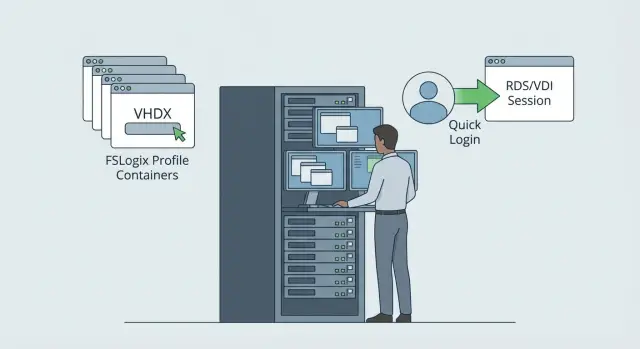
FSLogix for RDS/VDI works as a profile container. The user profile is stored as a single file on network storage and attached to the session as a disk at logon. To the user it looks like a normal profile, but logon is often faster because you don't copy thousands of small files back and forth.
UPD (User Profile Disks) is similar in idea: a disk with the profile. It fits simple RDS scenarios with predictable applications and needs. The downside is less flexibility: it's harder to exclude certain folders and caches cleanly, and modern apps or mixed scenarios (some users in RDS, some in VDI) can introduce quirks.
Roaming Profiles is the classic copy-at-logon/logoff model. It can work in small environments with light profiles, but with active use synchronization errors, version conflicts and long logons/logoffs quickly appear, especially if the network isn’t ideal.
A separate class is UEM (User Environment Management). UEM doesn’t move the whole profile but saves and restores user and application settings (policies, templates, parameters). This suits scenarios where you need granular control of settings without carrying junk.
Choose based on three criteria: logon speed, settings persistence and maintainability. Containers often win with large profiles; settings behavior depends on how apps write data; supportability depends on how fast you can diagnose and how the solution tolerates farm growth.
If your RDS hosts run accounting and a call center with heavy mailboxes and many browser tabs, a container profile usually gives more predictable logons and fewer surprises. UEM is often added selectively for critical settings.
Preparation: storage, network and basic policies
Before enabling FSLogix for RDS/VDI everywhere, prepare the foundation. Most slow logon and "lost settings" issues stem not from the profile technology but from storage, network and permissions.
Profile containers are best kept where latency is predictable and IOPS are stable. That can be a file server, clustered file service, or NAS/SAN. For logon, latency matters more than raw bandwidth: many small operations occur at logon, and a fast network won't help if storage responds with pauses.
Plan the folder model in advance. Usually set a separate root for containers and partition it by users or pools (for example, different RDS collections or VDI pools). Ensure users have access only to their folder, while admins and service accounts have access to the root.
Antivirus almost always requires exclusions. Without them it may scan VHD/VHDX on every access, adding seconds or even minutes to logon. Typically exclude the container folder on the file resource, the VHD/VHDX files, and, if you externalize or clean temporary profile directories, those as well. Align additional process exclusions with your security policy.
Before starting, check Windows/RDS compatibility, updates, and basics: stable DNS, time sync, disable unnecessary background tasks during logon, and consistent folder redirection rules (if used). In a pilot this shows quickly: among 20 users logon time "floats" from 15 seconds to 2 minutes, and the cause is almost always storage latency or permissions.
FSLogix setup: step by step, no extra theory
FSLogix for RDS/VDI usually configures quickly if you've answered two questions first: where containers will live and how users access them (stable network and correct permissions).
1) Installation and enabling
Install the FSLogix agent on all RDS hosts or into the golden VDI image. Enable via GPO (convenient for a farm) or locally if testing a single server.
Basic sequence:
- install FSLogix Agent on the host
- enable Profiles (Profile Container)
- set VHD Locations (path to containers)
- reboot host and test with a sample user logon
2) Path, naming and which containers to enable
In VHD Locations specify a UNC path to the shared folder where VHD/VHDX files will live. The share needs read/write rights for users (usually via a group) and correct share and NTFS permissions.
Profile Container moves the Windows profile into the container, so it is usually enabled first. Office Container is useful when you want to control Office data separately (for example, Outlook OST) without touching everything else. In practice start with Profile Container and add Office Container later when you understand sizes and storage load.
3) Concurrent sessions and network interruptions
If users have multiple concurrent sessions (for example RDS plus VDI), define policy up front: allow or block simultaneous attachment to the same container. Also decide behavior for lost share access: is it better to terminate the session immediately or give time for the network to recover? This affects complaints like "it crashed and settings were lost."
4) Quick checks and logs
After a test user logs on, check:
- the container is mounted as a disk in the system
- the profile folder points to the mounted path rather than local C:\Users
- FSLogix logs show Attach completed without errors
- repeated logons for the same user are noticeably faster
FSLogix logs are on the host and usually reveal the root cause: no access to the share, file lock on the container, DNS/network problems or concurrent session conflicts.
How to stop profile growth
Profiles grow not because of "documents" but because of caches and temporary data. The more users in a pool, the faster profile storage fills up and logon slows.
Typical space hogs are Teams caches, browser caches (Chrome/Edge/Firefox), update temp files, application logs and local messenger databases. With FSLogix for RDS/VDI the growth moves inside the container but doesn't disappear.
Exclusions: what’s safe and what’s risky
Simple rule: exclude what’s easy to recreate, and don't touch what the user expects to remain. Browser caches and some temporary app folders are usually safe to exclude if it doesn't hurt functionality. Be careful with AppData\Roaming: it often contains settings users expect to persist. Most importantly — don't exclude profile folders randomly: you can trigger app reinitialization and logon errors.
Mail deserves special attention. OST files and Outlook cache can easily be gigabytes per user. A container helps if you need a stable offline cache and fast Outlook startup. But if your mail infrastructure supports it, sometimes limiting cache size and sync period is better than carrying huge OST files between hosts.
OneDrive and folder redirection
Problems often start when OneDrive, Known Folder Move and folder redirection are misaligned. That creates duplicates and conflicts.
Good practice: set limits and cleanup rules in advance — remove old temp files, control cache sizes, and apply quotas to containers. If a pilot shows an accounting group’s profile growing 1–2 GB per week due to Teams attachments and browser cache, it’s simpler to add exclusions and limits early than to fix an overloaded share and mass logon failures later.
How to speed up logon: what helps most first
If logon is 2–5 minutes, first identify where the time is lost. A common mistake is treating the "profile" as the root cause when GPOs, logon scripts, network checks or even a single problematic printer are the real culprits.
Measure where the slowdown is
Break the logon into parts: profile retrieval, GPO application, script execution, app startup and device initialization. Collect metrics once for a "slow" user and compare to a "fast" one.
Practical steps:
- check Windows event logs for timing: User Profile Service, GroupPolicy, Winlogon
- temporarily disable logon scripts and compare logon times
- check network path to profile and shared resources: latency and brief disconnects hit logon hard
- exclude print drivers and device redirection as causes (a single network printer often causes issues)
- make sure antivirus isn't scanning containers and profile folders at logon
When the profile is identified as the bottleneck, container approaches like FSLogix for RDS/VDI usually have a noticeable effect: less file copying at logon/logoff and fewer profile-related surprises.
Shorten the logon chain
Remove everything from logon that can run later: unnecessary network checks, mapping dozens of drives "just in case", waiting for rare apps to become ready. Review autostart items: updaters, agents and browser plugins often start at once and create queues on disk and network.
Caching and "warming" can help, but they often mask a network or storage issue. If logon slows again without warming, fix the root cause.
For high-concurrency environments focus differs. On RDSH control device and printer redirection and cap IOPS peaks on profile disks. In VDI pools prioritize a clean base image with minimal autostart and no updates in the morning peak. Test changes on a small group and record before/after metrics.
Diagnosing and fixing profile failures
Profile failures in RDS/VDI look similar: temporary profile, empty desktop, missing shortcuts and settings, or an endless "Welcome" screen. The root cause is nearly always in the logs rather than guesswork.
First separate a host-wide issue from a profile-specific one. If all users on one host hang, it’s usually the host (CPU/RAM, a full disk, network). If the same user fails across hosts, it’s usually the profile or container.
10-minute quick check
Gather minimal facts before you "fix":
- open Event Viewer and check User Profile Service errors
- check FSLogix logs (typically in ProgramData\FSLogix\Logs): messages about container attach/mount and access errors
- verify profile storage availability: no brief disconnects, no high latency, no SMB failures
- check for container locks (VHD/VHDX): if a session hung or a process didn’t exit, the container may remain locked
- compare logon timing: if it’s slow only the first time after host reboot, the issue may be services, antivirus or network warming rather than the profile
If the container is corrupted
The safest approach is not to try to "repair" the file in place. Record the incident, make a copy of the container, then give the user a new clean container (for example by renaming the old file). After that, selectively restore needed data from the copy. This gets the user back to work faster and reduces repeat logon failures.
Practical example: a user gets a temporary profile every other logon. FSLogix logs show the container fails to mount due to "access denied." Investigation reveals antivirus scanning on the storage periodically locks the VHDX. Adding exclusions and retrying fixed the issue without reinstallations.
Typical traps at scale
A pilot looks great with 10–20 users. Problems surface Monday morning when hundreds log in and the profile system hits its limits.
First trap — profile storage. If containers are on a slow disk without proper cache and redundancy, logon will drag and read errors may appear. On a test that seems tolerable, but under mass logon latency multiplies.
Second trap — share permissions. A common scenario: profile folders are created but the container won't mount and the user gets a temporary profile. From the outside it looks like "VDI forgot settings" while the cause is simple: wrong owner, broken inheritance or inability to create lock files.
Third trap — antivirus. Scanning VHD/VHDX on the fly adds tens of seconds to logon and can cause issues at peak load. Excluding containers and their directories is best planned in advance.
Another trap — mixing approaches without a clear scheme (e.g., UPD + roaming + FSLogix). Data ends up in multiple places, duplicates appear and settings float.
Check key application profiles separately. If Outlook, Teams or browsers reset, it isn’t always a "VDI bug." Sometimes the container doesn’t include required paths or the app writes settings to nonstandard locations.
Before scaling make sure:
- containers are stored where storage can handle concurrent logons
- share and container file permissions are correct (create, read, lock)
- antivirus is configured not to interfere with VHD/VHDX and profile directories
- one primary profile approach is chosen
- key application settings persist for a test user
Pre-launch checklist before rolling out to all users
Before a mass enablement of container profiles, ensure improvements are backed by numbers. Use the same test group (10–20 representative users) and compare results before and after enabling FSLogix for RDS/VDI.
Checks that often save weeks of troubleshooting after rollout:
- measure logon time consistently: from password entry to ready desktop; compare median and the long-tail (slowest 10%) at the same load times
- check container size and growth: record starting size and track for at least 5–7 workdays
- ensure containers mount reliably at every logon; warning signs are temporary profiles, empty settings, or creation of a new profile instead of attaching the existing one
- simulate a brief network outage: model temporary loss of storage access and perform a re-login; understand what the user sees and whether duplicate containers or broken sessions appear
- verify that GPOs and antivirus settings are consistent across hosts: required GPOs applied and exclusions actually work
If these checks produce repeatable metrics, you can expand the pilot. If not, stop and fix the causes: mass rollout multiplies small mistakes by the number of users.
Example scenario: pilot for an RDS farm or VDI pool
Imagine a training classroom or contact center: 60–200 employees, similar apps, frequent logons during the day and many temporary files. Problems show up immediately: slow logons, reset settings, inconsistent experience on identical seats.
A good start is a pilot with 20–30 people. Choose a small but "noisy" group (those who log in most often) and test the container profile, for example FSLogix for RDS/VDI, under real load.
To avoid arguing on impressions, measure before and after:
- logon time (average and 95th percentile)
- frequency of temporary profiles, profile errors and hangs at logoff
- profile size after 1, 3 and 5 workdays
- number of support tickets about logon and settings
- file storage load at peak (latency and queues)
Segment users into 2–3 groups: typical office (browser), "heavy" (1C, CAD, large mailboxes), and executives (many apps and exceptions). Each group has its own growth sources and logon speed expectations.
Assign roles and support rules: usually an RDS/VDI admin (sessions and GPOs), a storage admin (permissions, quotas, backups), and InfoSec (encryption, audit, retention requirements). Define limits: maximum profile size, what counts as "working data" (Documents, Desktop) and where it lives, and what can be cleaned automatically (browser caches, Teams/OneDrive, temp folders).
Keep success criteria simple: logon faster than X seconds, profiles not growing more than Y GB/week, settings persist, and support tickets about profiles drop. If the pilot meets these, scaling becomes a technical task rather than a risk.
Next steps: pilot, infrastructure and support
Start with metrics. Without them it's hard to tell whether deployment helped or merely moved the problem. Record current logon time (cold and repeat), profile sizes, frequency of complaints about reset settings and number of profile failures.
Before the pilot decide where containers will reside and how you'll survive a node failure. For small loads one file server with good disks can suffice, but at hundreds of users predictable latency and steady small-operation throughput matter most. Plan backups: containers grow fast and backups should be regular but not interfere with business hours.
Minimal preparation plan:
- collect metrics: logon time, profile size, top problems by support tickets
- choose storage and redundancy model for the load
- test network path to storage (latency and loss matter more than advertised "gigabits")
- define backup and recovery (what to do if a container is corrupted)
- assign an owner for the support runbook and maintenance windows
Run a pilot on a small group (20–30 users across departments). Include heavy users with many Outlook items, Teams, browser profiles and printers. After 1–2 weeks compare metrics and expand in waves so support can handle common questions.
If you need turnkey procurement and deployment, GSE.kz as a vendor and systems integrator can help select and deploy S200 Series servers for a file server or cluster, and provide system integration and 24/7 technical support under a single agreement.
Frequently asked questions
Why does a profile in RDS/VDI sometimes work and sometimes behave like a "first run"?
Most often, it’s not a single file that “breaks” but the entire profile load chain: access to storage over the network, locks on the container/profile folder, antivirus scanning and parallel logons. For the user this looks like an empty desktop, reset settings, or a login with a temporary profile.
What should I check first if logon takes 2–5 minutes?
Main causes are an oversized profile, high latency to storage, and heavy logon processing (GPOs, scripts, printers, autostart items). Start by measuring where the time is spent before changing the profile mechanism or exclusions.
How does FSLogix differ from Roaming Profiles in practice?
FSLogix stores the profile in a VHD/VHDX on a network resource and "attaches" it as a disk at logon, usually without copying thousands of small files. Roaming Profiles copy the profile back and forth at logon/logoff, so with large AppData and non-ideal network the logon time becomes unpredictable.
Which should I start with: Profile Container or Office Container?
Enable Profile Container first because it gives basic profile portability and stabilizes logon. Add Office Container later when you understand the importance of separating Office data (for example, Outlook/OST) and whether the storage can handle the extra load.
Why can parallel sessions of the same user break the profile?
If the same container is used by two sessions simultaneously, you can get locks and mount errors, which results in a temporary profile or reset settings. The safe approach is to decide in advance: either block parallel connections to the same container, or separate scenarios so a container isn't opened simultaneously.
Why make antivirus exclusions for profile containers?
Because antivirus may scan VHD/VHDX and files inside them on every access, adding delay and sometimes blocking the container. Typical mitigation is to create exclusions for the folder with containers and the VHD/VHDX files themselves, aligned with your security policy so protection doesn't interfere with mounting and profile operation.
Why do profiles keep growing even with FSLogix enabled?
Mostly caches and temporary data: browsers, Teams, logs, leftover update files, and Outlook mail cache. A container makes storage easier but doesn't limit growth by itself, so you need rules: what to clean, what to exclude, and what quotas are acceptable.
What can be excluded from the profile and what should you avoid touching?
It's dangerous to exclude folders at random, especially under AppData\Roaming where many actual application settings live. A safe rule: exclude things that are easy to recreate and do not impact user experience, then validate on a pilot so apps don't reinitialize at every logon.
What to do if an FSLogix container is corrupted or doesn't mount?
Start with logs and symptoms: which host, which user, are there mount errors and is the share accessible. The fastest safe way to get the user back to work is to copy the problematic container, create a new clean container, and restore needed data selectively after the root cause is fixed.
Which metrics should be collected in a pilot to avoid a blind rollout?
At minimum — median logon time and the long-tail of slowest logons, frequency of temporary profiles, profile size growth by day, and number of support tickets about logon/settings. Run the pilot on 20–30 users of different types to capture office and heavy-use scenarios before a full rollout.